

Struggling to connect a PC to Wi-Fi can be incredibly frustrating. Many users face this common issue, often without a clear understanding of what’s causing the problem. Whether it’s a sudden disconnection or a failure to connect altogether, these hiccups can disrupt productivity and leisure alike.
Understanding the potential reasons behind Wi-Fi connectivity issues is crucial for troubleshooting effectively. From hardware malfunctions to software settings, the root of the problem can vary widely. By exploring these factors, users can quickly identify the cause and get back online, ensuring a smoother experience in the digital world.
Common Reasons for Connection Issues
Several factors contribute to a PC’s inability to connect to Wi-Fi. Key issues often stem from hardware problems or software conflicts that can disrupt connectivity.
Hardware Problems
Hardware problems frequently lead to connectivity issues. Users often experience the following:
- Network Adapter Failure: A malfunctioning network adapter can prevent wireless connections. This device may require a driver update or replacement.
- Router Malfunction: A faulty router can cause intermittent connections. Restarting or resetting often resolves the issue.
- Distance from Router: Being too far from the router reduces signal strength. Moving closer can improve connectivity significantly.
- Physical Obstructions: Walls and electronic devices can interfere with signal quality. Eliminating barriers may enhance the Wi-Fi connection.
Software Conflicts
- Outdated Drivers: Outdated network adapter drivers can cause failures to connect. Regular updates maintain optimal performance.
- Firewall Settings: Overly restrictive firewall settings might block network access. Adjusting these settings can often restore connectivity.
- VPN Interference: VPN software may interfere with network connections. Disabling the VPN temporarily can help identify if it’s the cause of the issue.
- Network Configuration Errors: Incorrect network settings can prevent successful connections. Resetting the network settings can fix these problems swiftly.
Troubleshooting Steps

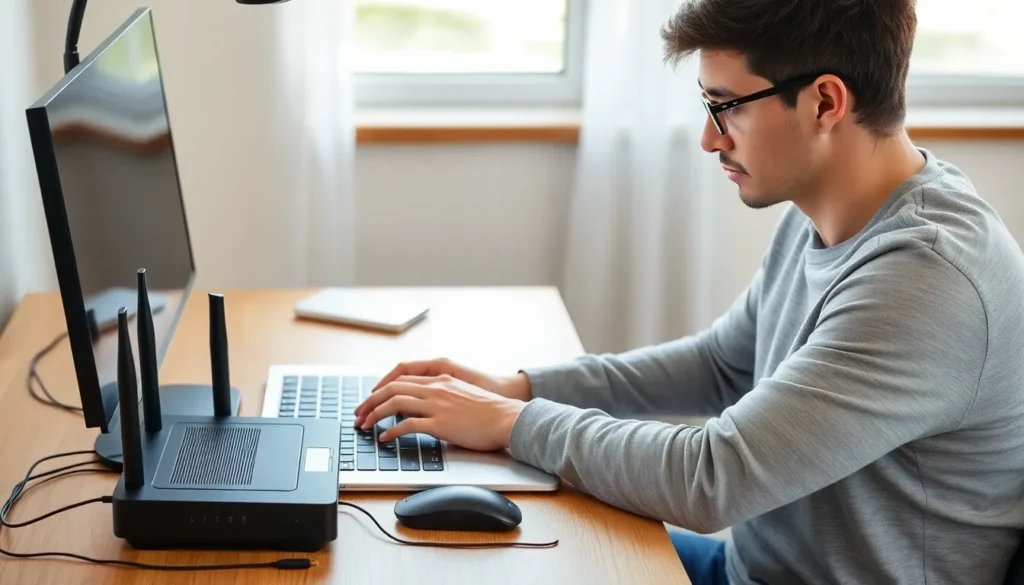
Users can follow several steps to troubleshoot Wi-Fi connectivity issues. These methods target both hardware and software problems that may prevent a PC from connecting to the network.
Checking Network Settings
Users should verify their network settings to ensure correct configurations.
- Network Adapter: Confirm the network adapter is enabled. Access the Device Manager and find the network adapters section. Right-click on the adapter and select “Enable” if it’s disabled.
- Wi-Fi Networks: Check for available Wi-Fi networks. Click the Wi-Fi icon in the system tray and ensure the desired network appears. If it’s not visible, the adapter may require troubleshooting.
- Network Configuration: Inspect the IP configuration. Open Command Prompt and enter
ipconfigto view IP settings. Ensure the PC has a valid IP address compatible with the router. - Firewall Settings: Review firewall settings. Confirm that the firewall isn’t blocking Wi-Fi access. Adjust settings in the control panel to allow network traffic.
- Forget and Reconnect: Forget the Wi-Fi network and reconnect. Go to Wi-Fi settings, select the network, and choose “Forget.” Re-enter the password to re-establish the connection.
Restarting Devices
Restarting devices can resolve several connectivity issues quickly.
- PC Restart: Reboot the PC to refresh system settings. A simple restart clears temporary glitches affecting connectivity.
- Router Reboot: Unplug the router, wait 30 seconds, then plug it back in. Allow a few minutes for the router to fully restart and stabilize.
- Modem Reset: If problems persist, restart the modem. Unplug it, wait 30 seconds, and plug it back in. This process can resolve network issues by refreshing the connection with the Internet Service Provider (ISP).
- Network Adapter Reset: Reset the network adapter through network settings. Navigate to “Network & Internet,” select “Status,” and use the “Network reset” option to restore default settings.
Advanced Solutions
For persistent Wi-Fi connectivity issues, users can implement advanced solutions that address deeper network and hardware concerns. These methods focus on updating essential components and resetting network configurations.
Updating Drivers
Updating drivers can resolve compatibility issues that affect network connectivity. Users should navigate to the Device Manager, locate the network adapter, and select the option to update drivers automatically. This action ensures the latest drivers install, improving performance and stability. Additionally, checking the manufacturer’s website for manual downloads may provide enhanced features or fixes that automatic updates might miss. Regularly updating drivers can prevent future Wi-Fi problems.
Network Reset
Performing a network reset establishes a clean connection to the router and eliminates any configuration errors. Users can initiate this option through the network settings on their PC. After selecting “Network Reset,” the process will remove all saved networks and configurations, restoring factory settings. Upon completion, users need to reconnect to their Wi-Fi network, entering the necessary credentials. This method often resolves stubborn connectivity issues and enhances overall network performance.
When to Seek Professional Help
Users should seek professional help when basic troubleshooting measures fail to resolve Wi-Fi connectivity issues. Signs of persistent problems include inability to connect to multiple networks, frequent disconnections despite having a strong signal, or error messages that suggest hardware failures.
Technicians can diagnose hardware malfunctions effectively. For instance, damaged network adapters or faulty routers may require replacement. Technicians possess the tools and expertise to identify underlying hardware issues that may not be apparent to users.
Software complications also warrant professional assistance. If drivers fail to update, despite multiple attempts, or if the operating system exhibits unusual behavior during network configurations, a professional’s guidance becomes essential. They can analyze system logs and software conflicts that could hinder connections.
Lastly, users should consider professional help when dealing with complex network setups or advanced configurations. Unique network environments, such as those involving enterprise hardware or specialized configurations, often need expert intervention for optimal performance and reliability.